Update Your Insurance in MyChart
Do you have insurance changes?
It’s now easier than ever to update your insurance information through MyChart.
How to Add Coverage
- Log in to your MyChart Account on the web or the App.
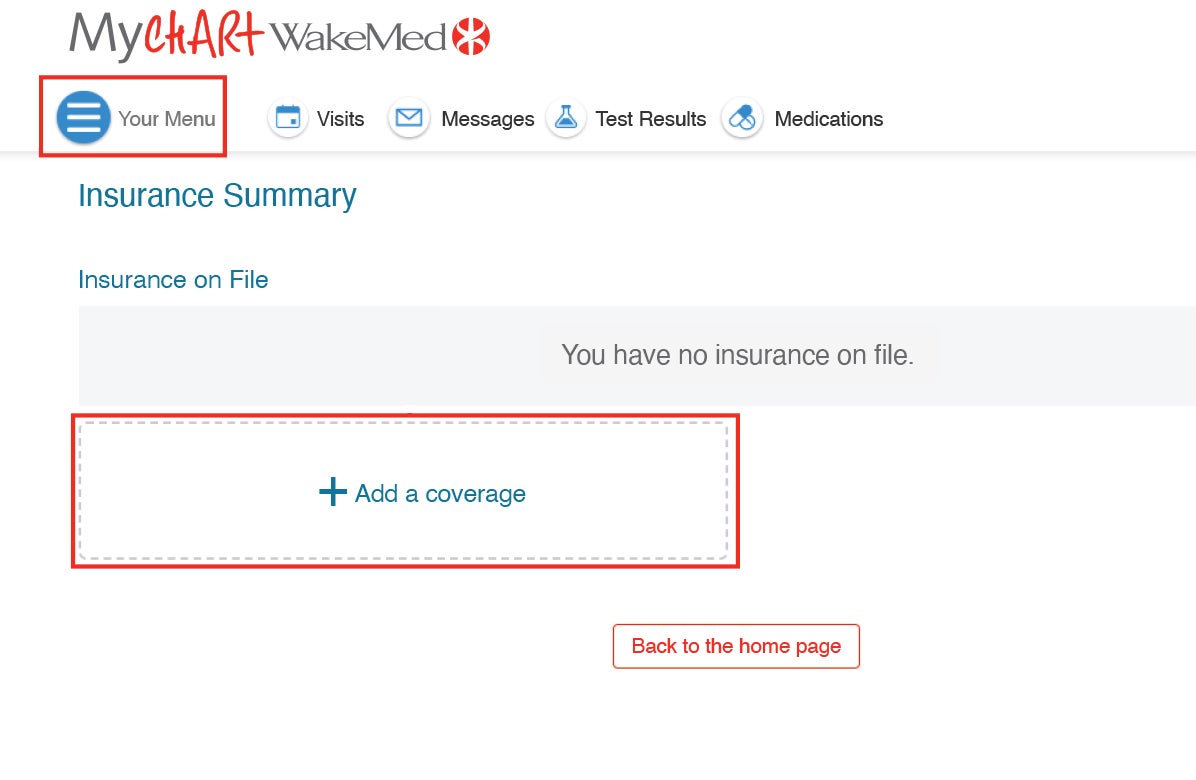
- Click the “Your Menu” button (the three stacked lines)
- Choose “Insurance Summary” (under the Insurance section).
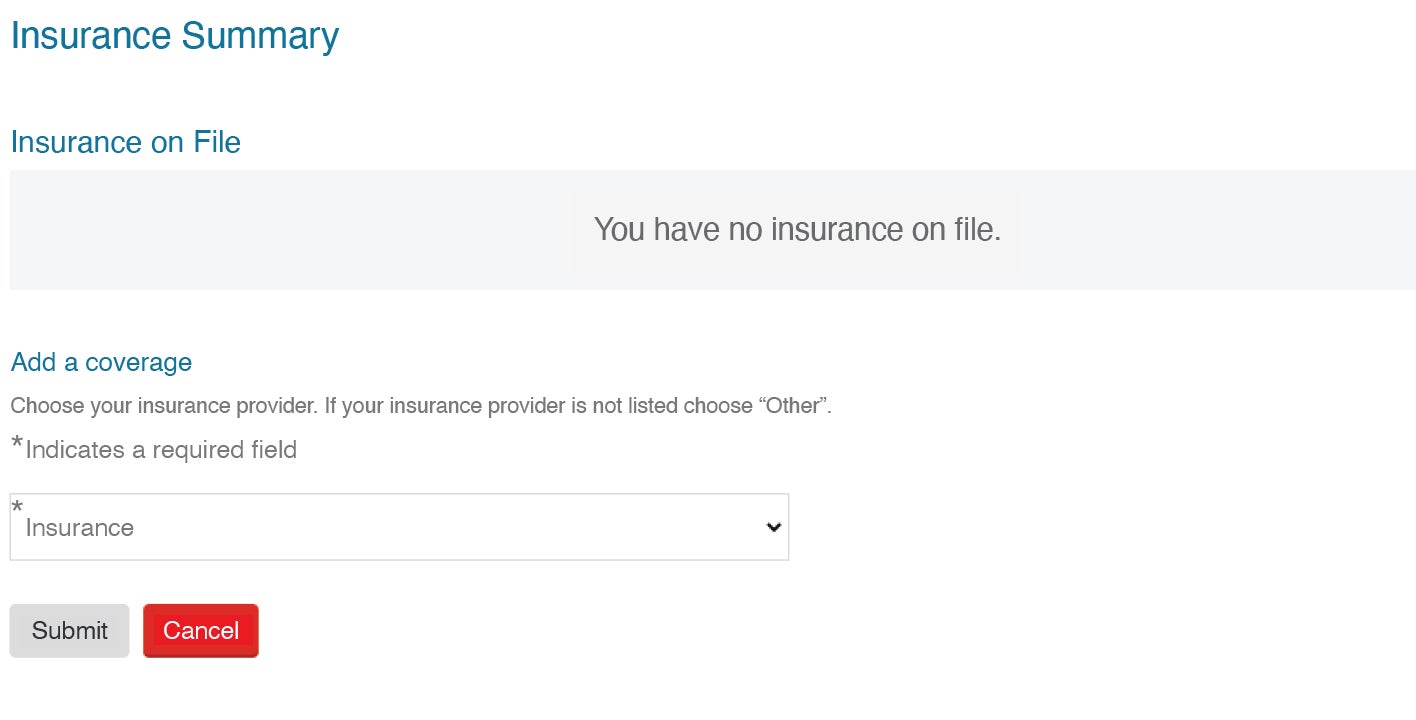
- Select “Add a Coverage”
- Upload a copy of your insurance card by clicking “Add Insurance Card Photo”. (Don’t forget to include photos of both the front and the back of the insurance card.)
How to Remove Coverage
- Log in to your MyChart Account on the web or the App.
- Click the “Your Menu” button (the three stacked lines)
- Choose “Insurance Summary” (under the Insurance section).
- Select “Remove Coverage”
- If you have new insurance, make sure to add that new policy to your account by following the instructions above.
Step-by-Step guide on how to make this update is also available in Spanish.
Your insurance changes will not be automatically accepted. A WakeMed team member will review and accept the changes you submit.
Download the WakeMed MyChart App
The MyChart app for both Android and iOS allows patients to access their WakeMed MyChart account from a phone or tablet. You download the MyChart app for iOS on the App Store or for Android on Google Play. Watch this video to learn more about how to sign-up for MyChart on your mobile device.